Worked in Microsoft Word? You know it’s a core productivity tool, yet most users never move beyond basic typing, overlooking powerful features, advanced formatting, and modern capabilities that can significantly improve how documents are created and managed. This guide helps you move from basic use to real mastery, uncovering hidden features, productivity tricks, and AI-powered tools.
- Microsoft Word Explained: How It Works in 2025
- Getting Started: Your First Steps to Word Mastery
- Unleash Your Creativity: Mastering Word’s Essential Features
- The Future is Now: AI and Copilot in Microsoft Word
- Work Smarter, Not Harder: Pro Tips and Tricks
- Taming the Beast: A Troubleshooting Guide for Common Issues
- Word vs. The World: A 2025 Showdown
- Is Word a Relic of a "Paper-First" World?
- Frequently Asked Questions (FAQs)
- What are the five main features of Microsoft Word?
- How do I start using Word for the first time?
- Is Microsoft Word easy to learn for a beginner?
- Can I get Microsoft Word for free?
- What's the difference between Microsoft Word and Microsoft 365?
- How can I use Copilot in Word to improve my writing?
- What's the best way to fix a document that won't format correctly?
- How do I track changes when collaborating with others?
- Is Word or Google Docs better for writing a resume?
- What are the latest features in the newest version of Word?
- Conclusion
Microsoft Word Explained: How It Works in 2025
More Than a Digital Page: What is Microsoft Word, Really?
Let’s be honest, for most of us, Microsoft Word is like digital wallpaper. It’s just… there. We use it to type up a quick letter, update our resume, or maybe begrudgingly format a report for work. But to see Word as just a blank page on a screen is like looking at a smartphone and only seeing a device for making calls. You’re missing the magic.
At its core, Word is a powerful word processing application, but in reality, it’s a sophisticated toolkit for creation, communication, and collaboration. It’s the engine behind countless novels, the backbone of legal systems, and the unsung hero of boardrooms worldwide.
From Clunky Code to a Clean Interface: A Brief History
Do you remember typewriters? The clacking keys, the unforgiving finality of ink on paper? One mistake and you had to start the whole page over. When the first word processors appeared, it felt like a miracle. I remember a colleague describing his first time using an early version of Word after years on a typewriter; he said he wanted to “jump up and down with glee” at the sheer freedom of being able to edit text without consequence.
That was the world Word was born into. Initially launched as “Multi-Tool Word” in 1983, it wasn’t an instant hit. But Microsoft was persistent. With the release of Windows, Word’s graphical interface began to shine, and by the mid-to-late 1990s, it had steamrolled the competition, capturing a staggering 80-95% of the market share.
Why It’s Still the King in 2025
Even with a flood of new, flashy alternatives, Word remains the undisputed king in many professional arenas. Why? It’s something called the “network effect.” The .docx file format has become a universal standard, a digital handshake that everyone trusts.
Nowhere is this more apparent than in the legal field. For lawyers, judges, and clients, the .docx format acts as a “network protocol.” Its advanced formatting, commenting, and tracking features are essential for drafting complex legal documents, making Word not just a tool, but a cornerstone of the entire profession and a key part of any modern digital productivity suite.
Getting Started: Your First Steps to Word Mastery
Ready to move beyond just typing? Let’s take a quick tour of the command center and get you creating your first document like a pro.
Decoding the Word Interface
When you open Word, you’re greeted by a clean, modern interface. Don’t let it intimidate you; it’s designed for efficiency.
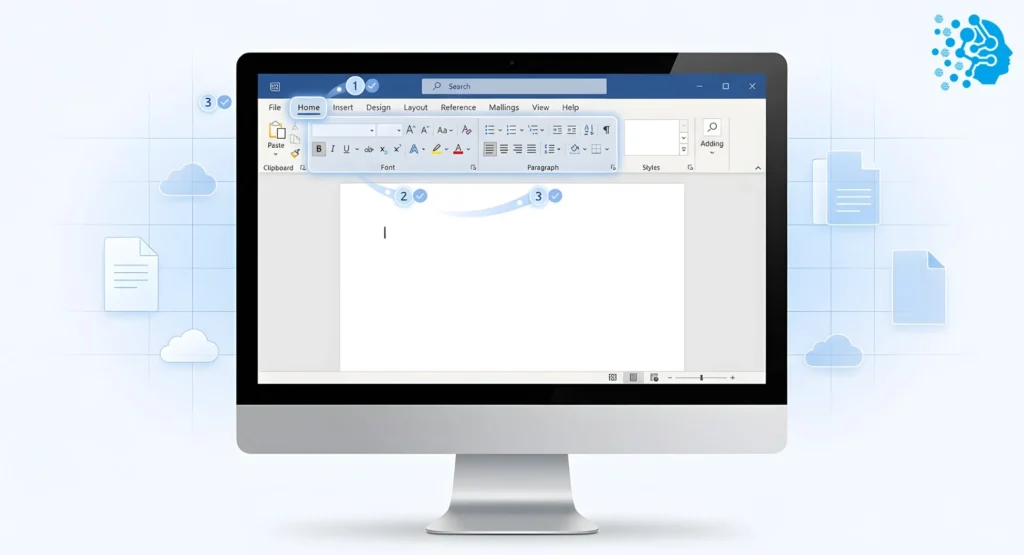
- The Ribbon: This is the big toolbar at the top, organized into tabs like Home, Insert, Design, and View. It’s your main control panel.
- Quick Access Toolbar: A small, customizable toolbar at the very top left. You can add your most frequently used commands here for one-click access.
- Backstage View: Click on the File tab, and you’ll enter the Backstage view. This is where you manage your files—creating, opening, saving, printing, and sharing.
Your First Document: A Step-by-Step Guide
Let’s put it into practice.
Create a New Document: Go to File > New and select Blank document.
Start Typing: The blinking cursor is your starting point. Write a few sentences. Notice how text automatically wraps to the next line. This is the simple magic of word processing.
Saving Your Work: This is crucial. Go to File > Save As. Give your document a name. Here you can choose the format. .docx is the standard Word format, while .pdf creates a “digital print” that is easy to share and can’t be easily edited.
Sharing and Collaboration: Ready to share? In the Backstage view, you’ll see options to share via email or, even better, save it to OneDrive to collaborate with others in real-time.
For more basics, you can always check out Microsoft’s official “Getting Started with Word“ page.
Unleash Your Creativity: Mastering Word’s Essential Features
This is where you separate yourself from the amateurs. Learning to use Word’s formatting and object tools is the key to creating documents that look polished and professional.
Professional Formatting at Your Fingertips
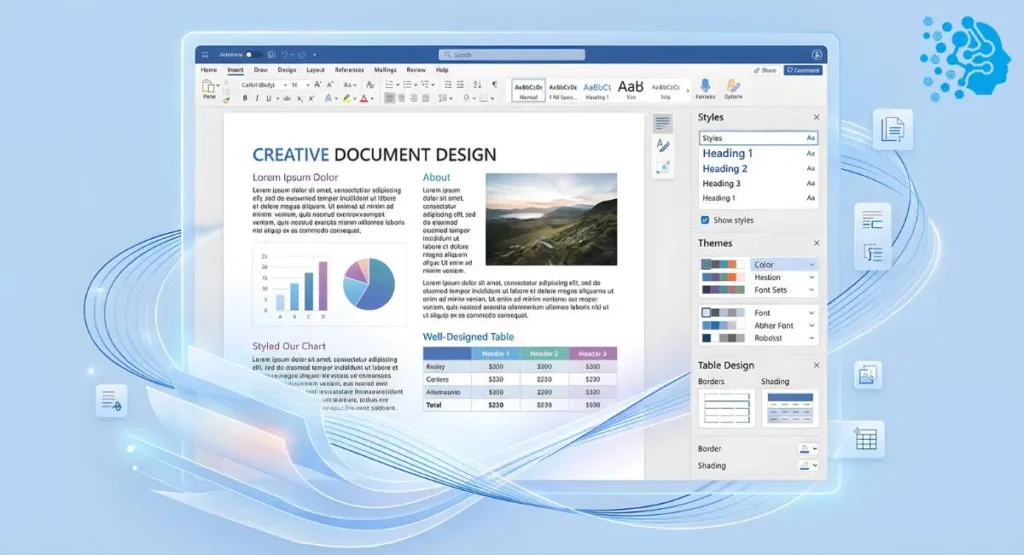
Consistent formatting is the hallmark of a professional document. The secret? Styles and Themes. Instead of manually changing the font size and color for every heading, use the pre-built Styles in the Home tab. Heading 1, Heading 2, and so on.
Want to change the look of your entire document in one click? Go to the Design tab and play with the Themes. This will update all your fonts, colors, and effects instantly.
Beyond Just Text: Working with Images, Tables, and Charts
A wall of text is boring. Break it up!
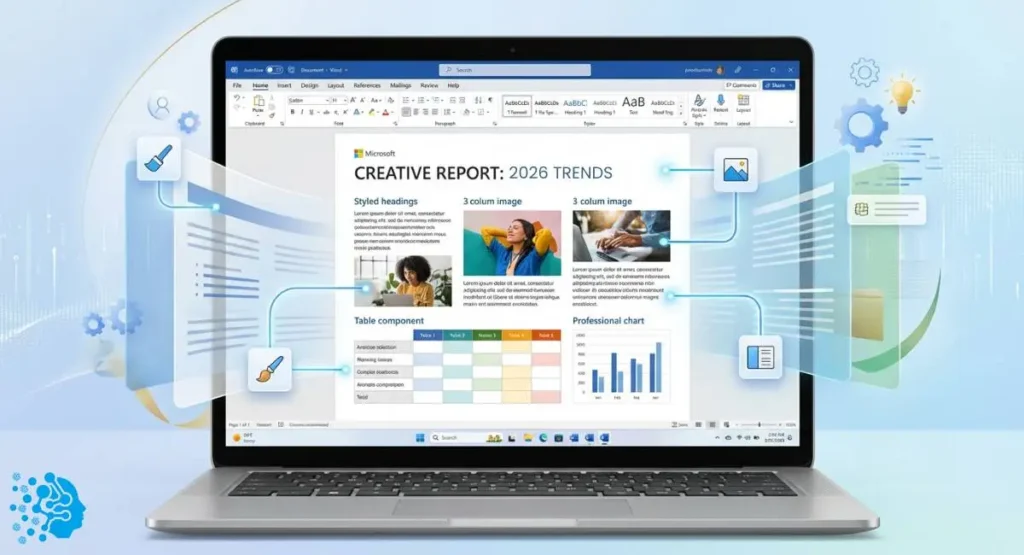
When you insert an image (Insert > Pictures), don’t just leave it sitting there awkwardly. Click on the image, and a Picture Format tab will appear. The most useful tool here is Wrap Text. Selecting Square or Tight will let your text flow naturally around the image.
Tables (Insert > Table) are perfect for organizing data. Once created, a Table Design tab appears, letting you add colors and styles to make your data pop.
The Future is Now: AI and Copilot in Microsoft Word
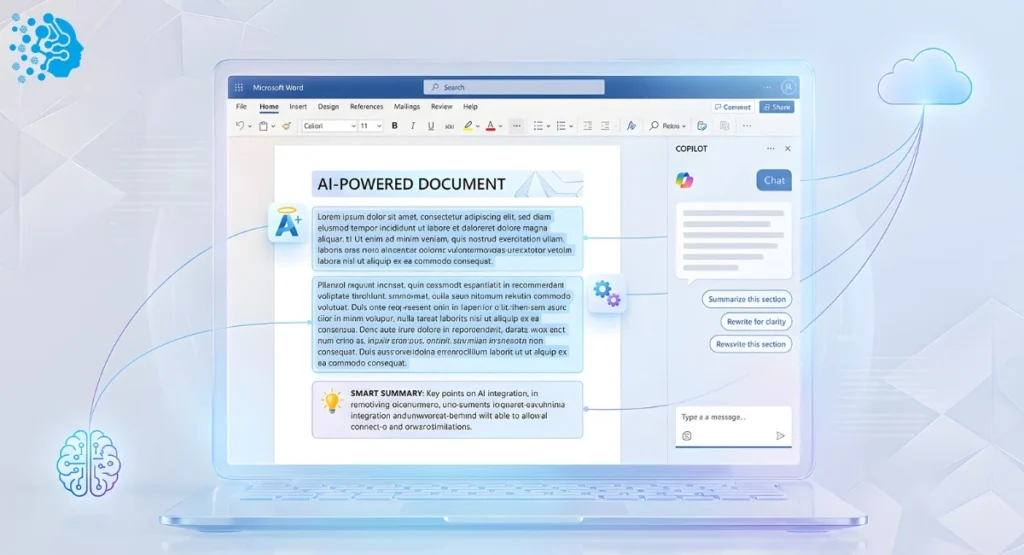
Just when you thought you knew Word, AI came along and changed the game. If you’re not using AI in your workflow, you’re falling behind. This is a huge leap forward in how AI is reshaping content creation.
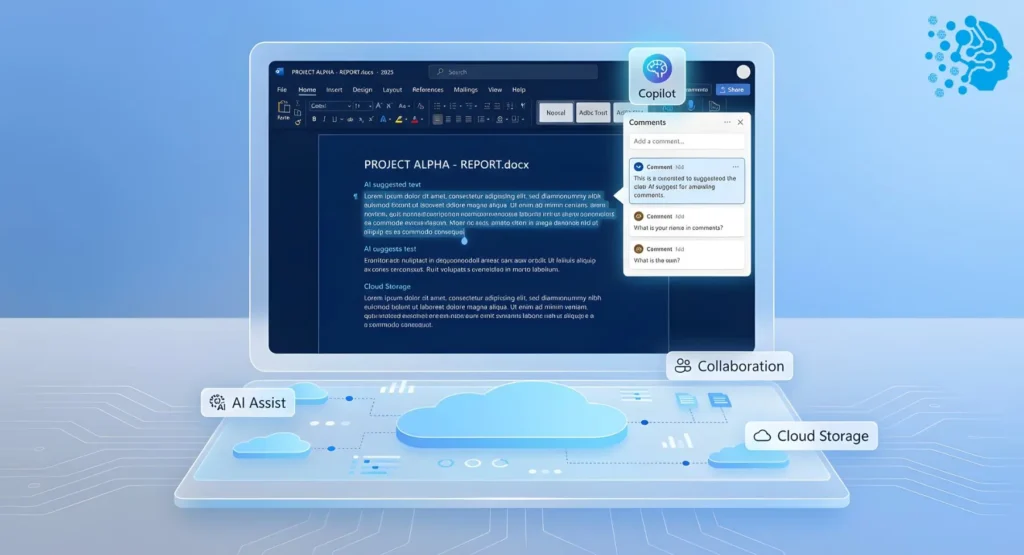
Your New AI Writing Assistant: Introducing Copilot
Integrated directly into Microsoft 365, Copilot is your AI-powered partner in Word. It’s not here to replace you; it’s here to supercharge your productivity. As one industry expert puts it, “Document work is becoming automated. And this means us, the users, are being set free.” Copilot handles the tedious work, so you can focus on the ideas. Learn more about Microsoft AI updates in 2026 and how AI is changing productivity.
Practical Ways to Use Copilot Today
How does this work in practice? Imagine this:
- Generate a first draft: Staring at a blank page? Give Copilot a simple prompt, like “Write a project proposal for a new marketing campaign,” and watch it generate a structured draft for you.
- Summarize a long document: Have a 20-page report you need to understand quickly? Ask Copilot to summarize it into key points.
- Rewrite a paragraph: Is your wording a bit clunky? Highlight a paragraph and ask Copilot to rewrite it to be more concise or to adopt a more professional tone.
- Ask questions about your document: Can’t remember if you included a specific data point? Just ask Copilot, “Does this document mention our Q3 sales figures?”
Work Smarter, Not Harder: Pro Tips and Tricks
Ready for some real time-savers? These are the tricks that seasoned pros use every day.
Time-Saving Keyboard Shortcuts You’ll Actually Use
Forget complex shortcuts. These are the essentials.
Action | Shortcut |
Save Document | Ctrl + S |
Bold Text | Ctrl + B |
Italicize Text | Ctrl + I |
Copy Formatting | Ctrl + Shift + C |
Paste Formatting | Ctrl + Shift + V |
The last two are a game-changer. It’s called the Format Painter, and it lets you copy the look of one piece of text and apply it to another instantly.
The Magic of Mail Merge for Personalized Communication
Ever received a personalized letter that was clearly part of a mass mailing? That’s Mail Merge. And it’s not just for big corporations.
I once worked with a small business owner who spent an entire day every month manually typing out personalized letters to her top 50 clients. I showed her Mail Merge. In under an hour, we had created a template that automatically pulled each client’s name and details from a simple Excel sheet. It saved her hours of tedious work. You can do this too by going to the Mailings tab and following the step-by-step wizard.
Taming the Beast: A Troubleshooting Guide for Common Issues

Word can be frustrating. We’ve all been there. Here’s how to fix the most common headaches.
Solving Annoying Formatting Glitches for Good
Ever had a document where the spacing just goes haywire? The nuclear option is the Clear All Formatting button (it looks like an eraser on the Home tab). But for more surgical precision, turn on the “Show/Hide” feature (the paragraph symbol). This reveals all the hidden formatting marks, spaces, tabs, and page breaks, so you can see what’s really going on and delete the culprits.
Don’t Panic! How to Recover Unsaved or Corrupted Documents
There’s no worse feeling than Word crashing and taking your unsaved work with it. Before you despair, go to File > Info > Manage Document > Recover Unsaved Documents. Word often keeps a temporary version hidden away.
If a file won’t open and claims to be corrupted, use the Open and Repair function. For a detailed guide on troubleshooting, see how to fix Microsoft data directory errors fast. In the Open dialog box, instead of just clicking Open, click the little arrow next to it and select Open and Repair. It can often salvage a seemingly lost file. Better yet, set up AutoSave to your OneDrive today and never lose work again!
Word vs. The World: A 2025 Showdown
Word isn’t the only player in the game anymore. How does it stack up against its biggest rival?
The Classic Battle: Word vs. Google Docs
This is the main event. Here’s the breakdown:
- Microsoft Word’s Strengths: Offline power and complex formatting. If you’re writing a book, a scientific paper with complex citations, or a pixel-perfect report, Word’s deep feature set is unmatched.
- Google Docs’ Strengths: Real-time, seamless collaboration. If you need several people to jump into a document and edit simultaneously with zero friction, Google Docs is the king. Its web-native interface is simple and fast.
The verdict? There is no single winner. The smart professional doesn’t choose one; they choose the right tool for the right task. Use Docs for quick brainstorming and collaborative notes. Use Word for final, polished, and complex documents. For a more detailed breakdown, check out this complete Word vs. Google Docs comparison.
Is Word a Relic of a "Paper-First" World?
There’s a growing debate among tech enthusiasts. Is Word, with its focus on pages and print layouts, becoming a dinosaur in our digital-first world?
The Argument for a Digital-First Future
Some argue that Word’s core philosophy is outdated. It’s designed to create documents that will eventually be printed on an 8.5×11-inch piece of paper. In a world of responsive websites and mobile devices, modern alternatives like Notion or Markdown editors are gaining traction because they are built for flexible, web-native content.
Why Word’s “Immortality” is Not Exaggerated
But don’t count Word out just yet. For countless professionals, it’s “immortality” is no exaggeration. In legal, academic, and corporate fields, the need for precise, locked-down formatting isn’t going away. The very features that make it seem “clunky” to some are what make it indispensable to others.
Frequently Asked Questions (FAQs)
What are the five main features of Microsoft Word?
The five main features are text editing and formatting, templates, tools for inserting objects (images, tables), collaboration features like Track Changes, and printing/sharing options.
How do I start using Word for the first time?
Open the application, choose “Blank document,” and start typing. Familiarize yourself with the Home tab for basic formatting and the File tab for saving.
Is Microsoft Word easy to learn for a beginner?
Yes, the basic functions are very intuitive. Mastery takes time, but anyone can create a basic document within minutes.
Can I get Microsoft Word for free?
You can use a free, limited version of Word online through Office.com with a Microsoft account. For the full desktop application, you need a Microsoft 365 subscription.
What’s the difference between Microsoft Word and Microsoft 365?
Microsoft Word is the application. Microsoft 365 is the subscription service that includes Word, other apps like Excel and PowerPoint, cloud storage, and ongoing updates.
How can I use Copilot in Word to improve my writing?
Use it to generate ideas, draft content, summarize long texts, or rewrite sentences for clarity and tone. It’s like having a writing assistant built directly into the program.
What’s the best way to fix a document that won’t format correctly?
Try using the “Clear All Formatting” button. For more control, use the “Show/Hide” feature to see hidden formatting marks and delete them.
How do I track changes when collaborating with others?
Go to the Review tab and turn on Track Changes. Every edit will then be marked for others to see, accept, or reject.
Is Word or Google Docs better for writing a resume?
For a visually creative and perfectly formatted resume, Word’s powerful design tools give it the edge. For quick, collaborative resume-building, Google Docs can be more efficient.
What are the latest features in the newest version of Word?
The most significant new feature is the deep integration of AI through Copilot. Other recent updates include enhanced collaboration tools and new design templates.
Conclusion
Microsoft Word is far more than a simple tool for typing. By mastering its features from advanced formatting to the new power of AI with Copilot, you can transform your efficiency and create professional documents with confidence. The journey from user to expert is within your reach, so start exploring these features today.



I’m Fahad Hussain, an AI-Powered SEO and Content Writer with 4 years of experience. I help technology and AI websites rank higher, grow traffic, and deliver exceptional content.
My goal is to make complex AI concepts and SEO strategies simple and effective for everyone. Let’s decode the future of technology together!