Microsoft Edge can’t read and write to its data directory when Windows blocks access due to permission conflicts between user profiles and system security. This error commonly appears after a Windows update or when launching apps like Roblox, AutoCAD, or Bentley. In most cases, broken folder permissions or new Windows 11 security features trigger the issue.
This guide fixes the error immediately using proven registry edits, permission resets, and Windows 11 policy adjustments. Let’s get your browser back online.
For the latest Microsoft AI developments, also check out our Microsoft AI News 2026 – AI Updates article.
- The Anatomy of a Browser Crash: Deconstructing the Error
- The Chromium Architecture: Why Data Directories Matter
- The Windows 11 Security Paradigm Shift: Administrator Protection
- Scenario Analysis: The Gamer’s Nightmare (Roblox)
- Scenario Analysis: Enterprise Gridlock (AutoCAD & Bentley)
- The Registry: The Nervous System of Edge
- Step-by-Step Remediation: The GUI Method
- Step-by-Step Remediation: The Command Line Interface (CLI)
- Microsoft Edge & The AI Revolution: How Copilot Complicates Things
- Developer Guidelines: Coding Your Way Out
- Maintenance & Prevention: Keeping Edge Healthy
-
Frequently Asked Questions (FAQ)
- 1. Why does this error say “Microsoft Edge” when I’m opening Roblox or AutoCAD?
- 2. Is it safe to give "Everyone" permission to my AppData folder?
- 3. I disabled "Administrator Protection" in Windows 11, and it works now. Why?
- 4. Can I just uninstall Microsoft Edge to fix this?
- 5. What is the "Registry Fix" everyone talks about?
- 6. Will resetting Windows fix this?
- 7. Does this error happen on Mac or Linux?
- 8. I use Chrome as my default browser. Why does Edge matter?
- 9. What is the WEBVIEW2_USER_DATA_FOLDER variable?
- 10. Why did this start happening after a Windows Update?
- Conclusion
The Anatomy of a Browser Crash: Deconstructing the Error
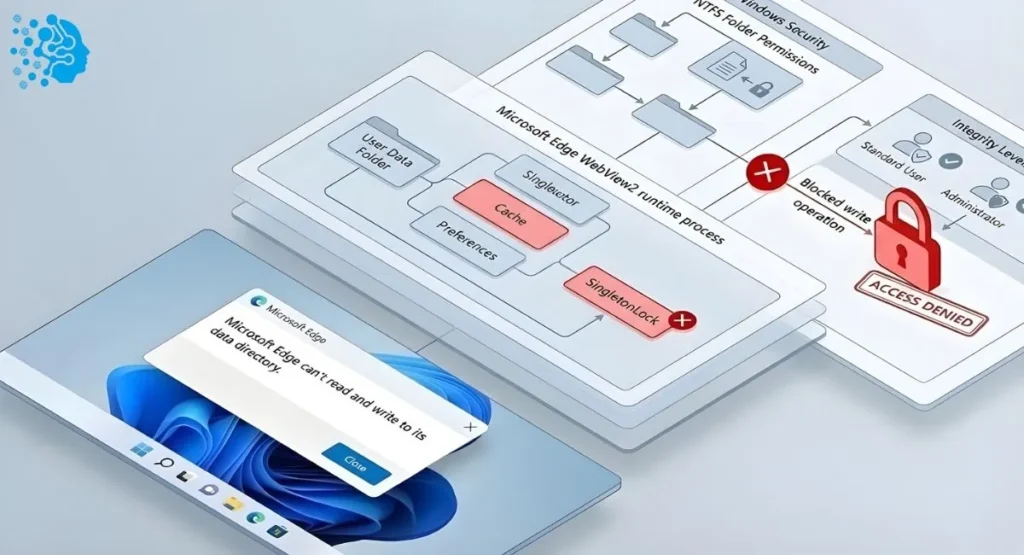
The error message “Microsoft Edge can’t read and write to its data directory” is one of the most deceptive notifications in the modern Windows ecosystem. On the surface, it appears to be a simple storage failure—a browser unable to save a cookie or a cache file. However, for a seasoned technologist, this syntax reveals a catastrophic breakdown in the Inter-Process Communication (IPC) between the Operating System’s security kernel and the application layer.
When you see this alert, you aren’t just looking at a browser glitch; you are witnessing a collision between legacy software architecture and the hardening security posture of Windows 10 and Windows 11. The error rarely stems from Microsoft Edge (msedge.exe) acting as a standalone browser. Instead, it almost exclusively occurs within the Microsoft Edge WebView2 Runtime, a specialized component that allows developers to embed web technologies (HTML, CSS, JavaScript) into native applications.
The Role of WebView2 in Modern Computing
To understand why this error is paralyzing applications ranging from Roblox gaming clients to AutoCAD engineering suites, we must first analyze the ubiquity of WebView2. In the past, applications were built using native languages like C++ or .NET for their entire user interface. Today, to ensure cross-platform compatibility and rapid deployment, developers use hybrid application architectures. They build the core logic in native code but render the user interface using a web engine.
WebView2 is that engine. It is effectively a “headless” version of Microsoft Edge that lives inside other programs. When you launch the Bentley CONNECTION Client or the Autodesk Identity Manager, you are technically launching a hidden instance of Edge.
Dive deeper into AI integrations with Microsoft tools in Microsoft AI News – GPT-5 Agents at Work.
This dependency creates a critical vulnerability: Shared Resource Contention.
Unlike the standalone Edge browser, which creates a user profile in a standardized location (%LocalAppData%\Microsoft\Edge\User Data), WebView2 apps often try to create “Data Directories” in ad-hoc locations. These locations might be:
- The application’s installation folder (often C:\Program Files, which is read-only for standard users).
- A temporary folder (%TEMP%).
- A sub-folder in AppData that was created by an Administrator installer but is now being accessed by a Standard User.
The error “can’t read and write” is a literal translation of an ACCESS_DENIED (0x80070005) flag returned by the NTFS file system when the WebView2 process attempts to acquire an exclusive lock on its profile database. If the process cannot write the DevToolsActivePort file or lock the Preferences file, the Chromium engine panics and throws this modal dialog, halting the entire application.
The Impact of Integrity Levels
Windows uses a security feature called Mandatory Integrity Control (MIC). Every process runs at a specific integrity level:
- System/High: Drivers, Kernels, Elevated Administrators.
- Medium: Standard Users, regular applications.
- Low: Sandboxed processes (like browser tabs).
The conflict arises here: If an installer (High Integrity) creates a directory, that directory is owned by the Administrators group. When the game or app later runs as you (Medium Integrity), it tries to write to that High Integrity folder. Windows forbids a Medium Integrity process from modifying a High Integrity object to prevent “Shatter Attacks” (privilege escalation). The WebView2 runtime catches this denial and presents the “Can’t read and write” error.
The Chromium Architecture: Why Data Directories Matter
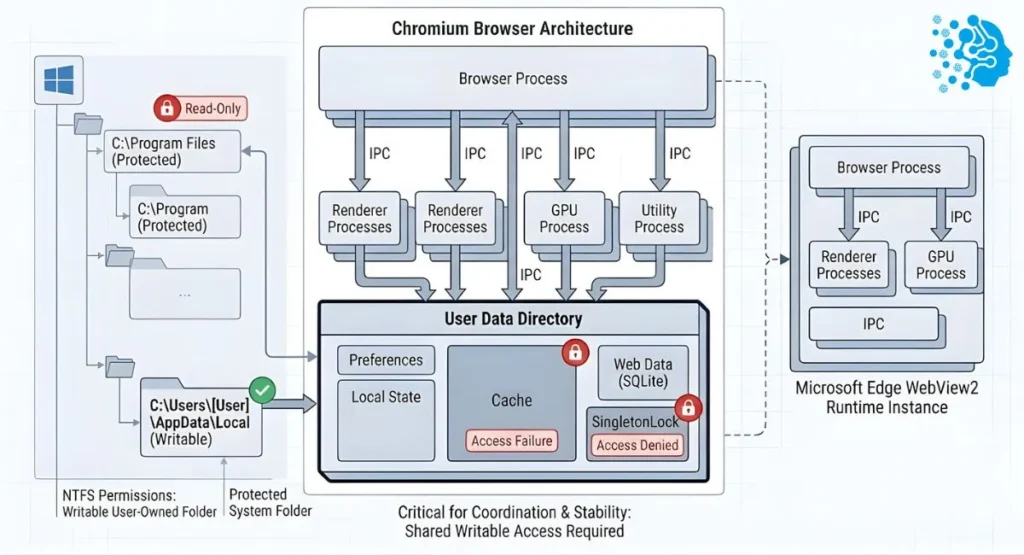
To fix this, we must understand what is inside the “Data Directory” that is so critical. Microsoft Edge is built on the Chromium open-source project, the same engine powering Google Chrome. Chromium is notorious for its complex file management requirements.
The User Data Folder (UDF) Structure
When any Chromium-based browser starts, it must have read/write access to a User Data Folder. This folder is not just for history; it contains:
- SingletonLock: A file that prevents two instances of the browser from corrupting the profile. If Edge cannot create or delete this file, it assumes the profile is in use and refuses to start.
- Local State: A JSON file storing master preferences.
- Web Data: An SQLite database containing autofill and form data.
- Cache: A directory of temporary internet files.
If the permissions on the root folder allow “Read” but deny “Write,” the browser can load the configuration but cannot update the SingletonLock. This specific state, Read-Yes, Write-No, is exactly what triggers the specific phrasing: “Can’t read and write”.
The WebView2 Difference
In a standard Edge installation, the User Data Folder is static. In WebView2, the host application tells the runtime where to put this folder.
- Good Developers: Point the UDF to %LocalAppData%\AppName\WebView2.
- Bad Developers: Point the UDF to the executable’s directory (C:\Program Files\AppName).
The latter is a disaster waiting to happen. In modern Windows, Program Files is a protected fortress. Regular users cannot write there. If a legacy app or a poorly coded update directs WebView2 to write its cache to Program Files, the error is guaranteed.
Table 1: Standard vs. WebView2 Data Paths
Component | Standard Path | Risk Level | Common Permission Owner |
C:\Users\<User>\AppData\Local\Microsoft\Edge\User Data | Low | Current User | |
C:\Users\<User>\AppData\Local\<AppName>\EBWebView | Low | Current User | |
C:\Program Files\<AppName>\WebView2 | Critical | TrustedInstaller / System | |
C:\Users\<User>\AppData\Local\Temp\<GUID> | Medium | Current User (Subject to cleanup) |
The Windows 11 Security Paradigm Shift: Administrator Protection
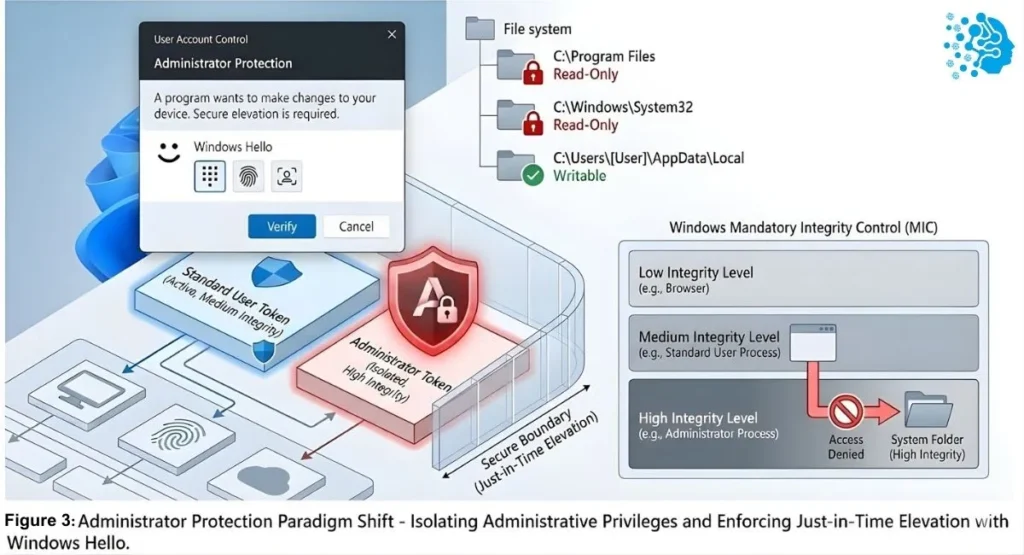
The most significant recent development affecting this error is the rollout of Windows 11 Administrator Protection (available in Insider Builds and 24H2+). This feature represents a fundamental change in how Windows handles local administrators, and it is a primary culprit for the sudden spike in “Data Directory” errors in 2024 and 2025.
What is Administrator Protection?
Traditionally, when a user is a “Local Administrator,” they hold a split token: a standard token for daily tasks and an elevated token for admin tasks. When an elevation is needed, User Account Control (UAC) prompts for a “Yes/No” click.
Administrator Protection changes this. It moves the administrator rights into a hidden, system-managed account. The user’s primary account is effectively stripped of inherent admin privileges. When elevation is needed, the system performs a Just-In-Time (JIT) elevation that requires Windows Hello authentication (FaceID, Fingerprint, or PIN).
The Collision with WebView2
The problem arises because many WebView2 applications were written assuming that if the user is an admin, they have implicit write access to certain system areas. With Administrator Protection enabled:
- The user launches an app (e.g., a driver update utility).
- The app tries to initialize WebView2 in a protected folder.
- The app expects to be able to write there because the user is an “Admin.”
- The Block: Administrator Protection sees a write request to a protected area without a specific UAC authorization. It silently denies the request to prevent malware from hijacking the admin token.
- WebView2 fails to create its data directory.
The error is not a bug in Edge; it is Windows 11 working exactly as intended to stop unauthorized file modifications. However, for legitimate software that hasn’t been updated to request permissions correctly, it breaks functionality completely.
Remediation Strategy for Admin Protection
If you are running Windows 11 24H2 or newer, disabling this feature is often the only way to restore functionality to older apps.
- Via Settings: Privacy & Security -> Windows Security -> Account Protection -> Toggle Administrator protection to OFF. A reboot is mandatory.
- Via Group Policy: Navigate to Local Policies -> Security Options -> User Account Control: Configure the type of Admin Approval Mode. Set this to “Admin Approval Mode” (the legacy setting) rather than “Admin Approval Mode with Administrator protection”.
Scenario Analysis: The Gamer’s Nightmare (Roblox)
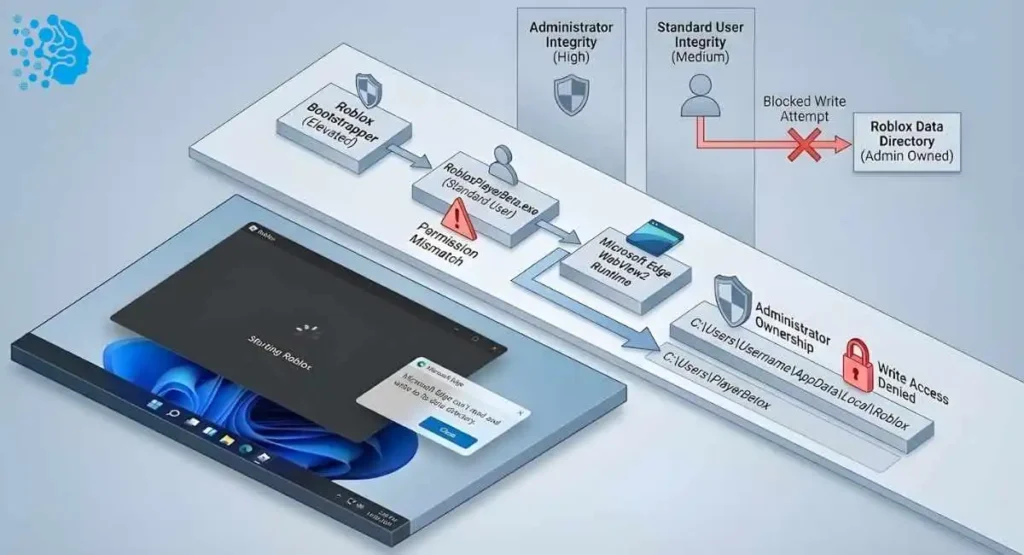
One of the most vocal communities facing this issue is the Roblox player base. The error typically appears right after the “Starting Roblox” splash screen, when the login modal tries to load.
Check out our guide on technology jobs and salaries in the healthcare sector for career insights: Healthcare Technology Jobs and Salary.
The Roblox Bootstrapper Issue
Roblox uses a “Bootstrapper” executable to check for updates every time it runs. This bootstrapper often runs with higher privileges (to install updates) than the actual game client (RobloxPlayerBeta.exe).
- The Trigger: You run Roblox as Administrator to fix a crash.
- The Consequence: The Bootstrapper creates a WebView2 data folder in %AppData%\Local\Roblox owned by “Administrators.”
- The Failure: Next time you run Roblox normally (double-click), the game runs as “User.” It tries to access the folder created in Step 2. Access Denied.
The Specific Fix for Roblox
The community-verified solution involves resetting the permissions specifically on the Roblox local data folder.
- Navigate to C:\Users\%USERNAME%\AppData\Local\.
- Find the Roblox folder.
- Right-click -> Properties -> Security.
- If your username isn’t listed with “Full Control,” click Edit -> Add.
- Type Everyone (or your specific username) and click OK.
- Check Full Control.
- Crucial Step: Click Advanced, check “Replace all child object permission entries with inheritable permission entries from this object,” and click Apply. This forces the permission down to the locked WebView2 files inside.
Scenario Analysis: Enterprise Gridlock (AutoCAD & Bentley)
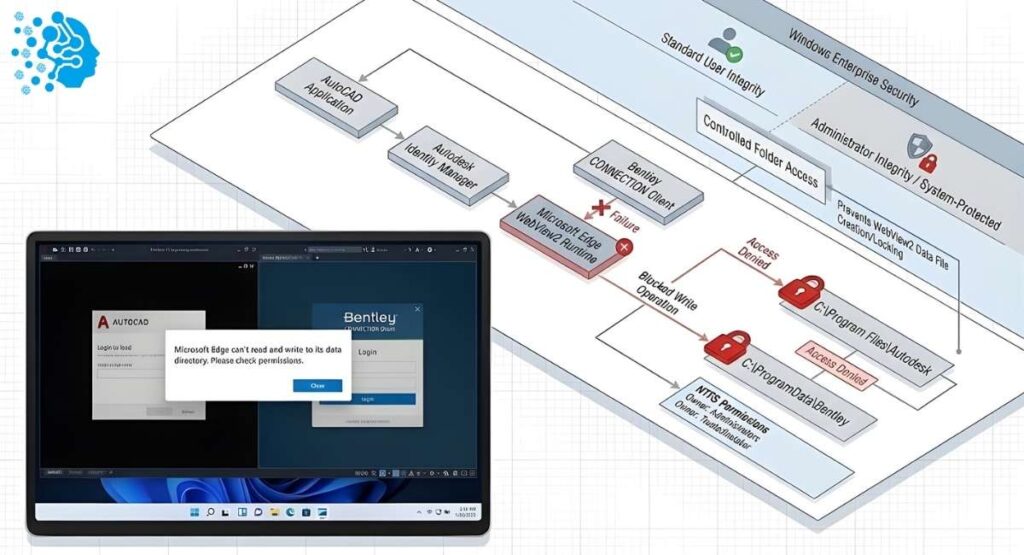
In the professional world, this error stops engineers from working. Software like AutoCAD 2023 and Bentley CONNECTION Client rely heavily on WebView2 for licensing and user sign-in. If WebView2 fails, the software cannot verify the license, and the app closes.
Also read our coverage on high-performance AI and AMD’s latest updates, AMD AI News Today – High Performance AI.
The Autodesk Identity Manager Corruption
Autodesk uses a shared component called the “Identity Manager” to handle logins across all its apps (Maya, 3ds Max, and AutoCAD). This component is a wrapper for WebView2 Runtime.
- The Cause: A corrupted installation of the WebView2 Runtime or the Identity Manager itself. This often happens after corporate IT pushes a background update to Microsoft Edge.
- The Fix: Unlike Roblox, permission edits rarely work here because the path is often in Program Files. The solution is a clean reinstall of the component.
- Go to Control Panel -> Uninstall a Program.
- Uninstall Autodesk Identity Manager.
- Reboot.
- Download the latest Identity Manager from the Autodesk support portal.
The Bentley “Run As” Trap
Bentley Systems has documented that this error is caused by a user launching the installer as a different user (e.g., an IT admin entering credentials) than the daily user.
- The Mechanism: The installer runs as Admin, creating the Bentley.STS.Client folder in %TEMP% or ProgramData. The daily user launches the app, which tries to write to that Admin-owned folder.
- The Fix: Deleting the specific temp folder.
- Open Start -> Run -> %TEMP%.
- Find Bentley.STS.Client or similarly named folders.
- Delete them.
- Restart the application. This forces the app to recreate the directory with the current user’s permissions.
The Registry: The Nervous System of Edge
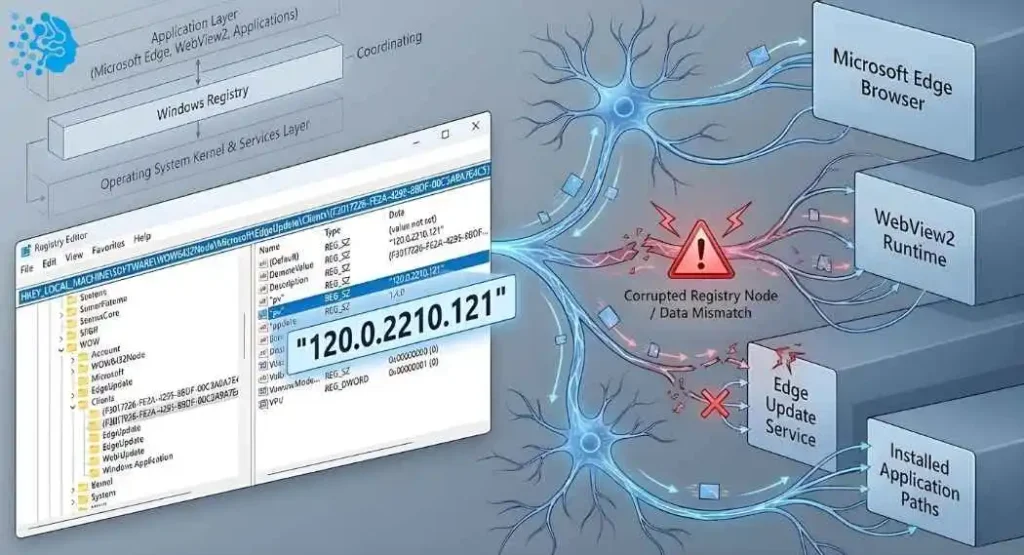
The “Clients” Key Cleanup
Research indicates a specific GUID key in the registry that, when corrupted, causes the runtime to lose track of its installation location.
- Key Path: HKEY_LOCAL_MACHINE\SOFTWARE\WOW6432Node\Microsoft\EdgeUpdate\Clients\{F3017226-FE2A-4295-8BDF-00C3A9A7E4C5}.1
This key represents the registration of the WebView2 Runtime within the Edge Update service. If the “pv” (Product Version) string here doesn’t match the actual file version on disk, the IPC check fails.
The Surgical Registry Fix:
- Open regedit as Administrator.
- Navigate to the path above.
- Export the key {F3017226…} to your desktop as a backup (vital safety step).
- Delete the entire folder (key) on the left pane.
- Re-run the “MicrosoftEdgeWebView2RuntimeInstallerX64.exe” (Evergreen Bootstrapper).
- Why this works: Deleting the key forces the installer to see the product as “missing” and perform a full “Repair/Re-register” routine, recreating the proper paths and permissions.
Step-by-Step Remediation: The GUI Method
For most users, the Graphical User Interface (GUI) provides the safest way to resolve these issues. Follow these steps in order.
Phase 1: The “Everyone” Permission Override
This is the “sledgehammer” approach. It is effective because it bypasses complex user checking.
- Locate the Folder: The error message usually lists a path. If it says C:\Users\You\AppData\Local\Roblox, go there. If it doesn’t list a path, assume it is %TEMP% or the application’s install folder.
- Properties: Right-click the folder -> Properties.
- Security Tab: Click Edit.
- Add User: Click Add….
- Type Name: Type Everyone and hit Check Names. It should underline. Click OK.
- Grant Access: Select Everyone in the top list. In the bottom list, check the box under Allow for Full control.
- Apply: Click Apply. Windows may ask for confirmation; say Yes.
Phase 2: Controlled Folder Access Whitelist
If Phase 1 fails, Windows Defender is likely blocking the write action.
- Open Security: Press Windows Key, type “Ransomware protection“.
- Check Status: Is “Controlled folder access” set to On?
- Allow App: Click Allow an app through Controlled folder access.
- Add Allowed App: Click the + button -> Browse all apps.
- Target: Navigate to C:\Program Files (x86)\Microsoft\Edge\Application\ and select msedge.exe.
- Target 2: Navigate to the folder of the app crashing (e.g., RobloxPlayer.exe) and select it too.
- Verify: Try rerunning the app.
Step-by-Step Remediation: The Command Line Interface (CLI)
For system administrators and power users, the CLI offers precision and speed. We will use PowerShell and standard Command Prompt tools.
Method 1: ICACLS Permission Reset
Icacls is the native Windows command for modifying Access Control Lists. This script grants the current user ownership and full rights to the local app data folder.
# Run PowerShell as Administrator
# Replace “TargetApp” with the actual folder name (e.g., Roblox, Autodesk)
$TargetDir = “$env:LOCALAPPDATA\Roblox”
# 1. Take Ownership
takeown /f $TargetDir /r /d y
# 2. Reset Permissions to Inherited Defaults
icacls $TargetDir /reset /T
# 3. Explicitly Grant Current User Full Control
icacls $TargetDir /grant “$($env:USERNAME):(OI)(CI)F” /T
Write-Host “Permissions reset complete for $TargetDir”
Method 2: Environment Variable Override
This is a powerful bypass. It tells WebView2, “Ignore the broken default path. Use this new path instead.”
- Open Command Prompt as Admin.
- Run the following command to set a system-wide variable (requires reboot):
DOS
setx /M WEBVIEW2_USER_DATA_FOLDER “C:\WebView2_Data” - Create the folder:
DOS
mkdir C:\WebView2_Data
icacls C:\WebView2_Data /grant Everyone:(OI)(CI)F
This forces all WebView2 apps to use C:\WebView2_Data as their scratchpad, bypassing any corruption in AppData or Program Files. This is highly recommended for developers or users with persistent profile corruption.
Microsoft Edge & The AI Revolution: How Copilot Complicates Things
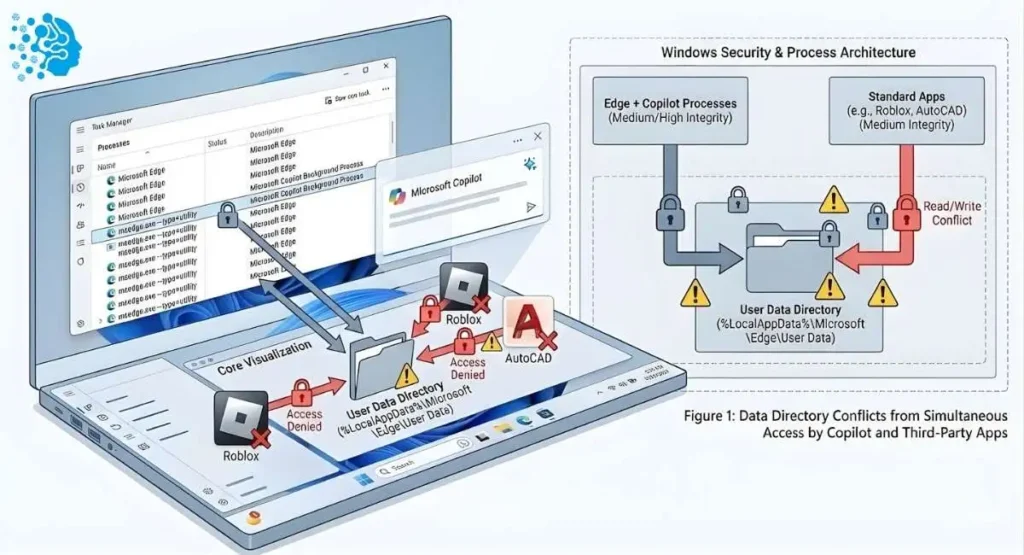
As we move into 2025, Microsoft Edge is no longer just a browser; it is the delivery vehicle for Microsoft Copilot and AI services. This integration introduces new complexities to the data directory issue.
The Copilot Process Lock
Copilot often runs as a background process (msedge.exe –type=utility) to provide instant AI assistance. This background process maintains a lock on the User Data directory to sync history and context.
- The Conflict: When you launch a third-party app (such as a game), it may attempt to access the same User Data folder to share cookies or login states.
- The Error: Because Copilot has the file locked for “Read/Write“, the game receives an “Access Denied” error.
- The Solution: In Task Manager, ensure all instances of msedge.exe are killed before launching the problematic application. This releases the file locks.
Updates and Version 143+
Recent Microsoft Edge updates (Version 143 and above) have introduced stricter Local Network Access policies and new security defaults. These updates sometimes reset the ACLs on the Edge installation folder (C:\Program Files (x86)\Microsoft\Edge).
- Diagnostic: If the error appears immediately after an Edge update, rolling back the version or temporarily disabling the auto-update cycle by moving the update folder (C:\Program Files (x86)\Microsoft\EdgeUpdate) can help confirm if the update is the cause.
Developer Guidelines: Coding Your Way Out
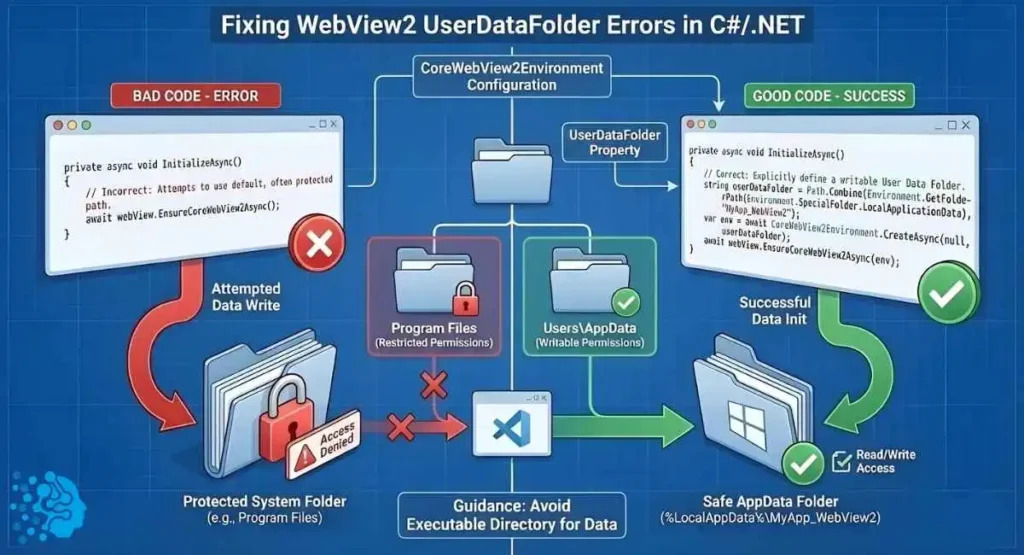
If you are a developer reading this because your users are reporting this error in your application, you must handle the CoreWebView2Environment creation explicitly. Do not rely on defaults.
The C# /.NET Fix
The default initialization often tries to write to the executable’s path. Use the UserDataFolder parameter to redirect this to a safe location.
C#
// BAD CODE:
// await webView.EnsureCoreWebView2Async();
// GOOD CODE:
string userDataFolder = Path.Combine(Environment.GetFolderPath(Environment.SpecialFolder.LocalApplicationData), “MyApp_WebView2”);
Directory.CreateDirectory(userDataFolder);
var env = await CoreWebView2Environment.CreateAsync(null, userDataFolder, null);
await webView.EnsureCoreWebView2Async(env);
By explicitly defining userDataFolder to be within %LocalAppData%, you ensure that the application always writes to a location where the user has inherent permissions, bypassing 90% of these error reports.
Maintenance & Prevention: Keeping Edge Healthy
To prevent this error from returning, adopt a hygiene routine for your Windows environment.
1. Regular Cache Clearing
The larger the data directory grows, the more likely it is to suffer corruption. Regularly clearing the WebView2 cache (which is separate from the main Edge cache) can help.
- Script a cleanup of %LocalAppData%\<AppName>\EBWebView directories.
2. Audit Your Security Software
Ensure your Endpoint Detection and Response (EDR) or Antivirus software is not flagging msedgewebview2.exe behaviors as suspicious. The “Just-In-Time” compilation of JavaScript files by the browser engine can sometimes look like ransomware encryption activity to aggressive heuristics.
3. Avoid “Run as Administrator”.
.Train yourself (and your users) to avoid right-clicking “Run as Administrator” unless necessary. Running apps in the standard user context ensures that file permissions remain consistent and owned by the user, preventing the User/Admin ownership mismatch that drives this error.
Frequently Asked Questions (FAQ)
1. Why does this error say “Microsoft Edge” when I’m opening Roblox or AutoCAD?
These apps use the WebView2 Runtime (a mini-Edge browser) for menus and logins; the error appears when this embedded component cannot write temporary data to your disk.
2. Is it safe to give "Everyone" permission to my AppData folder?
Yes, granting “Everyone” access to a specific sub-folder like AppData\Local\Roblox is safe for personal PCs, but never apply this to your entire C:\Users drive to avoid security risks.
3. I disabled "Administrator Protection" in Windows 11, and it works now. Why?
Administrator Protection blocks apps from writing data without explicit approval; disabling it allows older apps to write freely again, resolving the error but lowering system security.
4. Can I just uninstall Microsoft Edge to fix this?
No, WebView2 is a system component separate from the Edge browser, and removing it will break essential apps like Outlook and Teams without fixing the error.
5. What is the "Registry Fix" everyone talks about?
This involves deleting a specific corrupted key in HKEY_LOCAL_MACHINE to force the WebView2 runtime to self-repair its version data and resolve conflicts.
6. Will resetting Windows fix this?
Yes, a Windows reset restores default file permissions and registry keys, which will fix the error, but it is a drastic measure that should be a last resort.
7. Does this error happen on Mac or Linux?
No, this specific “Read and Write” error is exclusive to Windows because it stems from NTFS Access Control Lists (ACLs), which do not exist on Mac or Linux systems.
8. I use Chrome as my default browser. Why does Edge matter?
Embedded apps ignore your default browser; developers hard-code software like Roblox to use the WebView2 engine, so you cannot force them to use Chrome.
9. What is the WEBVIEW2_USER_DATA_FOLDER variable?
This system variable overrides the default save location, forcing the app to save data in a custom folder (e.g., C:\EdgeData) where you have guaranteed write access.
10. Why did this start happening after a Windows Update?
Updates like Windows 11 24H2 enable stricter security features by default, which block the “silent write” access older apps rely on, triggering permission errors.
Conclusion
The “Microsoft Edge can’t read and write to its data directory” error is caused by folder permissions, registry issues, and Windows security settings. Correcting AppData ownership, applying registry fixes, or whitelisting apps in Controlled Folder Access usually resolves it. Follow these steps to restore access and keep your applications running smoothly without interruptions.



I’m Fahad Hussain, an AI-Powered SEO and Content Writer with 4 years of experience. I help technology and AI websites rank higher, grow traffic, and deliver exceptional content.
My goal is to make complex AI concepts and SEO strategies simple and effective for everyone. Let’s decode the future of technology together!